Internet speed for IPTV: how to prepare your home connection
How much broadband speed IPTV needs, how to test it where your TV actually is, and simple Wi-Fi and router changes that make streaming steadier.
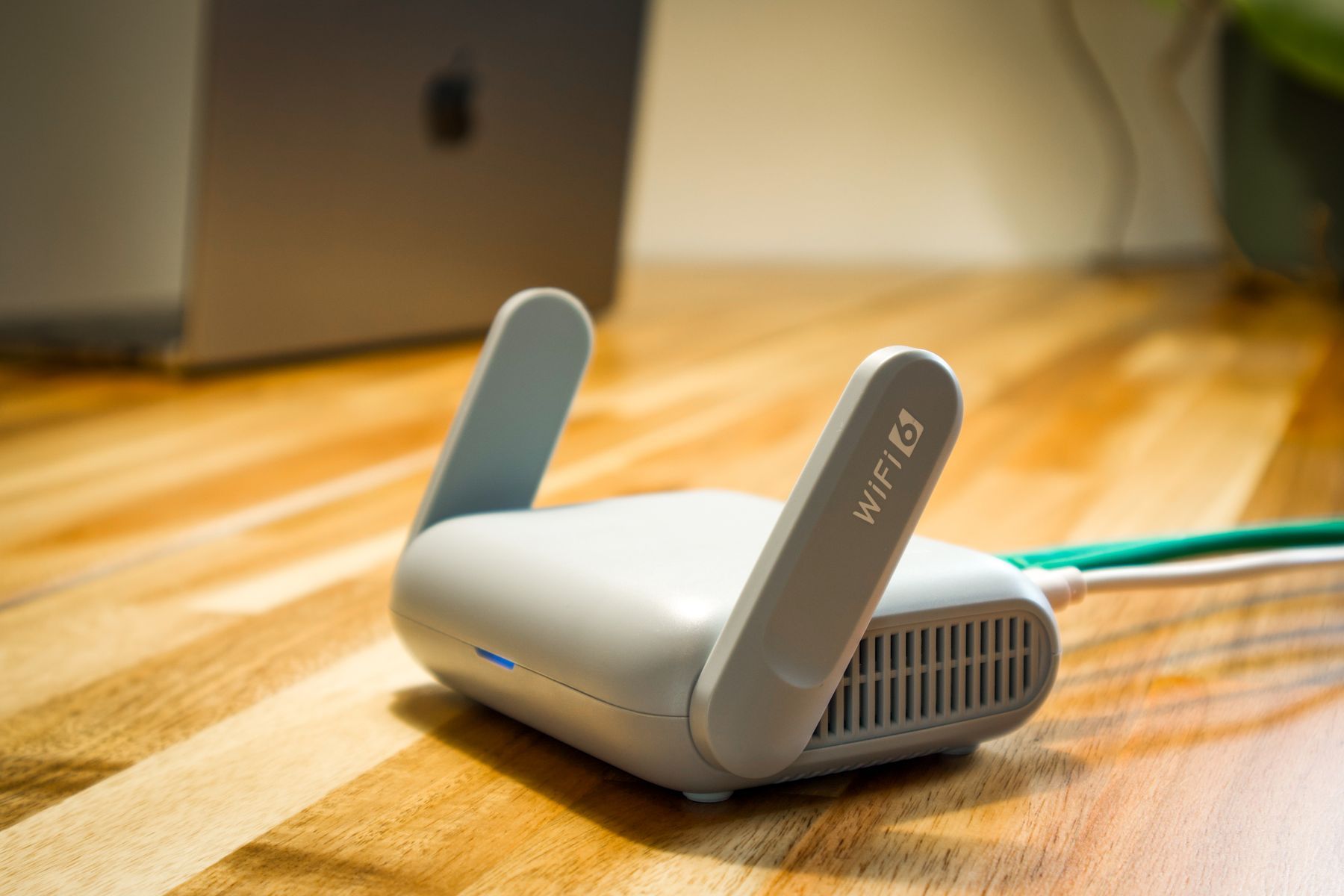
The speed your broadband provider advertises is measured at the router. Your TV may be two rooms away, behind a wall, sharing the connection with a games console and three phones. That is where IPTV problems usually start, and most of them can be fixed without changing your broadband package.
How much speed does IPTV need?
There is no single number, because it depends on picture quality and on what else is using your connection. As a widely used reference, Netflix recommends:
| Picture quality | Recommended speed |
|---|---|
| HD (720p) | 3 Mbps or more |
| Full HD (1080p) | 5 Mbps or more |
| 4K (Ultra HD) | 15 Mbps or more |
Treat these as a minimum for one stream. Live channels, and live sport in particular, are less forgiving than films because the player cannot load far ahead. If two people in the house watch different things at once, add the figures together and leave room for everything else on the network.
Test the speed where you watch
A speed test on a laptop next to the router tells you very little about the TV in the lounge.
- Run the test on the device you will watch on, if it has a browser or a speed test app.
- If it does not, stand where the TV is and run the test on your phone, connected to the same Wi-Fi.
- Test at the time you normally watch. An evening result is more useful than one at 10 in the morning.
- Note the result along with the time. If you ever need help, these numbers are the first thing to share.
Get a stronger connection to the TV
Use a cable if you can
An Ethernet cable from the router to the TV or box removes most Wi-Fi problems in one go. Many Smart TVs and Android boxes have an Ethernet port. Fire TV Sticks do not have one built in, though Amazon sells an Ethernet adapter for them.
If you rely on Wi-Fi
- Move the router into the open. Routers kept in cupboards, behind the TV or on the floor lose a lot of range.
- Use the 5 GHz band when the TV is near the router. It is usually faster and less crowded. The 2.4 GHz band reaches further through walls but is slower.
- Consider a mesh system or powerline adapters if the TV is far from the router. Both bring a strong signal closer to where you watch.
Reduce competition on the network
Large downloads, game updates, cloud photo backups and video calls all compete with your stream. During a match you care about, pause big downloads and updates on other devices.
Simple habits that help
- Restart the router occasionally. Switch it off, wait 30 seconds and switch it back on.
- Restart the streaming device rather than leaving it in standby for weeks.
- Keep the player app up to date, and keep some free storage on small devices such as streaming sticks.
- If you use a VPN, try a server close to you. A distant server can slow the stream down.
Quick checklist before you subscribe
- I know the speed at the TV, measured in the evening.
- The TV is on a cable, or on a strong 5 GHz Wi-Fi signal.
- I know how many people usually stream at the same time.
- Big downloads and backups do not run while I watch.
Still buffering?
If the picture keeps stopping after these steps, our guide on why IPTV buffers and how to fix it goes further. Or send us your speed test result and device model on WhatsApp and we will look at it with you. You can also compare our IPTV UK subscription plans once you are happy your connection is ready.